Party Mode: How the Auto-DJ Mixes Your Songs
Want to party instead of standing at the laptop? The Auto-DJ in Ampado PRO 6 turns your songs into one continuous mix. Here we show you step by step how to prepare the mix, what happens during transitions, how to jump in yourself and how to record the mix.
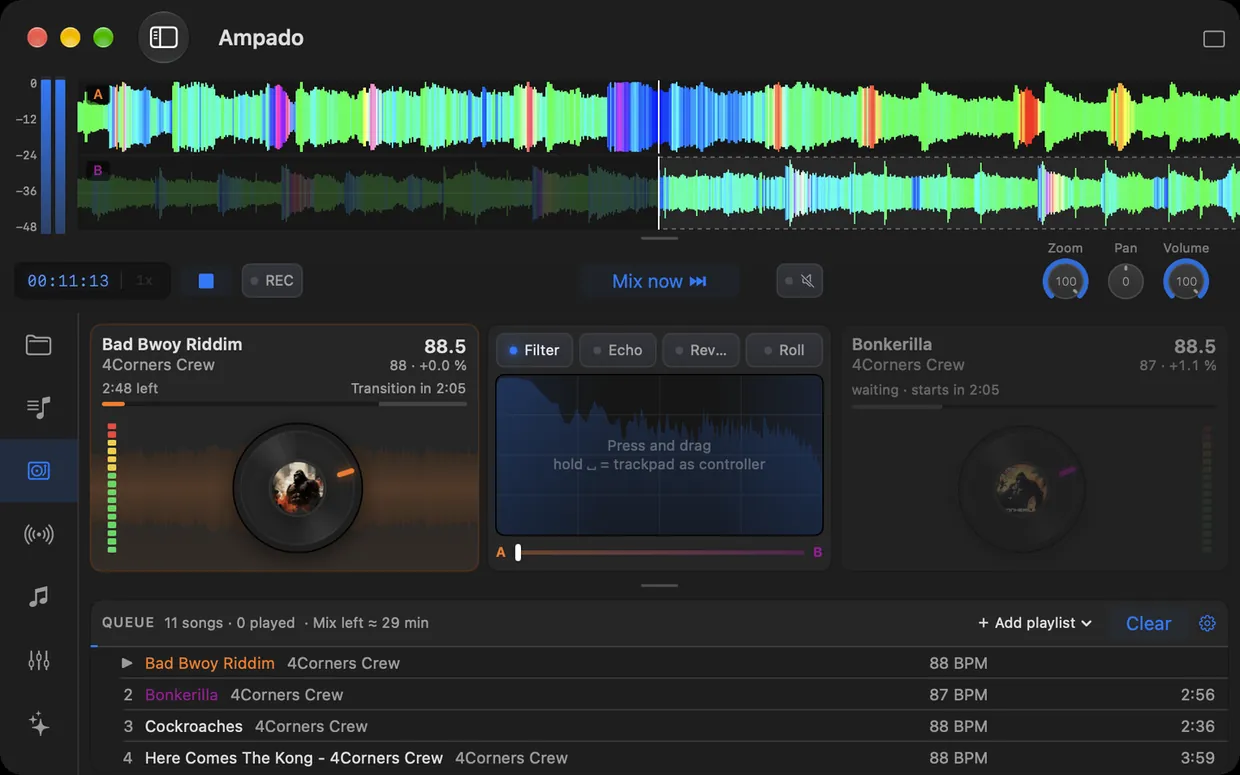
The Auto-DJ in Ampado PRO with two decks, FX pad and queue
We all know it: the party is on, but there are gaps between songs, a slow song follows a fast one, and someone keeps standing at the laptop looking for the next track. A DJ would blend the songs into each other, match the tempo and start the next song at exactly the right moment.
That is exactly what the Auto-DJ in Ampado PRO 6 takes over. You don’t need any DJ skills or have to learn DJ software: add songs, pick one or two settings and let it run. If you like, you can play with the effects in the meantime and feel like a real DJ. For an overview, see the Auto-DJ for Mac page; here we go into detail.
Preparing the mix
You find the Auto-DJ in the Auto DJ section of the sidebar. Here is how to fill the queue:
- 1.Drag songs or whole folders from the Finder or from Ampado into the queue, or click Open Folder or Files….
- 2.Or take over an entire playlist with Add playlist. Your imported playlists work too, of course.
- 3.Ampado briefly analyzes each song: tempo, intro, breakdowns and drops. The queue shows the BPM, and at the top the number of songs and the length of the mix.
- 4.Click Start mix. You need at least two songs.
You can also change the queue during the mix: add songs, reorder them by drag and drop or remove them. The Auto-DJ then replans the next transitions.
The right order
In the Mix settings (the gear next to the queue) you choose the order in which the songs play:
- •As queued: exactly in the order you set. Ideal if you have planned a sequence.
- •Shuffle: in random order, for variety.
- •Tempo arc: Ampado sorts by tempo. The mix starts with the slowest song, builds up to the fastest and winds down a little at the end, without big tempo jumps.
The tempo arc is made for a whole evening: relaxed when guests arrive, the peak in the middle of the night, a gentle wind-down. That is exactly how a DJ builds a set.
What happens during a transition
An Auto-DJ is more than a crossfade. Ampado looks for the right spots in both songs and builds the transition like a DJ:
- •Teaser: during a breakdown in the current song, the intro of the next song already plays quietly underneath.
- •Bass swap: during the actual transition, the next song first runs without bass, so the basslines don’t pile up.
- •On the drop: the switch happens exactly when the drop of the next song kicks in. The old song leaves with a spinback or an echo, plus a reverb or filter effect.
- •Tempo sync: during the transition, Ampado matches the tempo of the two songs while the pitch stays the same. Afterwards the new song glides slowly back to its own tempo.
If Ampado finds no suitable drops, for example with calm music, it uses a classic crossfade with tempo matching and bass swap instead. Spinback and echo alternate at random, so the mix stays varied.
On the deck you always see how long the song has left and when the next transition comes. Can’t wait? Start it right away with Mix now.
Getting hands-on
The Auto-DJ runs completely on its own. If you still want to join in, you have a few tools real DJs use too:
- •FX pad: choose Filter, Echo, Reverb or Roll and drag the mouse across the pad. The position sets the strength of the effect, and releasing ends it.
- •Trackpad as controller: hold down the space bar, and your MacBook trackpad controls the FX pad. Releasing ends the effect.
- •Spin wheels: with the CD wheels of the decks you jump forward or back in the song. The Auto-DJ then replans the next transition.
- •Mix now: starts the transition to the next song on the spot.
At the top, the waveforms of both decks run on top of each other with frequency colors. That way you see in advance where bass and drums kick in in the next song. If you like, the frequency visuals run behind the decks and the FX pad.
Recording the mix
The mix was so good you want to keep it? Click REC before or during the mix. When you turn recording off or the mix ends, Ampado saves it as a file, by default in your Music folder. In the Mix settings you choose the format:
- •AAC: small file, about 2 MB per minute. Ideal for your phone.
- •MP3 320 kbit/s: about 2.4 MB per minute, plays everywhere.
- •WAV: lossless, about 17 MB per minute. For further editing in your DAW.
That turns an evening into a mixtape for the car, for your workout or for everyone who couldn’t be there.
Five tips for the perfect party mix
The Auto-DJ does the transitions, but you pick the songs. With these tips the mix sounds even better:
- •Choose similar music: songs from similar genres and with a similar tempo give the smoothest transitions. The BPM column in the file list helps you choose.
- •Check the loudness: show the LUFS column in the file list. Songs that are clearly quieter or louder than the rest stand out immediately. More in Measure LUFS and True Peak.
- •Match the sound to your speakers: with a custom EQ preset you get the best out of party speakers or laptop speakers.
- •Visuals on the TV: connect a second display or TV and show the visualizers full screen there. Or use the MP3 Player compact mode with large cover art.
- •Keep an eye on the length: at the top of the queue, Ampado shows how long the mix has left. So you know when it’s time to add more songs.
The Auto-DJ in Ampado PRO
The Auto-DJ is part of Ampado PRO, a one-time purchase without subscription. It mixes your own audio files such as MP3, WAV, FLAC or AIFF straight from your folders, without importing. You also get visualizers, the equalizer, playlists, loudness analysis and the compact modes.
Frequently asked questions
Can I record the Auto-DJ’s mix?
Yes. Click REC. When you turn recording off or the mix ends, Ampado saves it as AAC, MP3 at 320 kbit/s or a lossless WAV file.
Does the Auto-DJ work with Spotify or Apple Music?
No. The Auto-DJ mixes your own audio files. Songs from streaming services can’t be tempo-matched and layered. You listen to Apple Music in Ampado as usual in the Apple Music section.
What is the tempo arc?
An order Ampado puts together by tempo: the mix starts with the slowest song, builds up to the fastest and winds down a little at the end, without big tempo jumps.
Does tempo sync change the pitch?
No. Tempo sync only matches the tempo during the transition, the pitch stays the same. Afterwards each song glides back to its own tempo. You can also turn tempo sync off in the Mix settings.
Can I control the effects with my trackpad?
Yes. Hold down the space bar, and your MacBook trackpad becomes the controller for the FX pad with Filter, Echo, Reverb and Roll.
Let the party begin
You get the Auto-DJ with party mode, effects and recording with Ampado PRO for $7.99 as a one-time purchase without subscription. Add songs, start the mix, party.