Five Compact Modes: Ampado as a Mini Player
With version 6 we rebuilt the compact modes from scratch. Five views, new controls with a scrub bar and time display, and everything works with every source, whether file, playlist, radio, Apple Music or DJ mix.
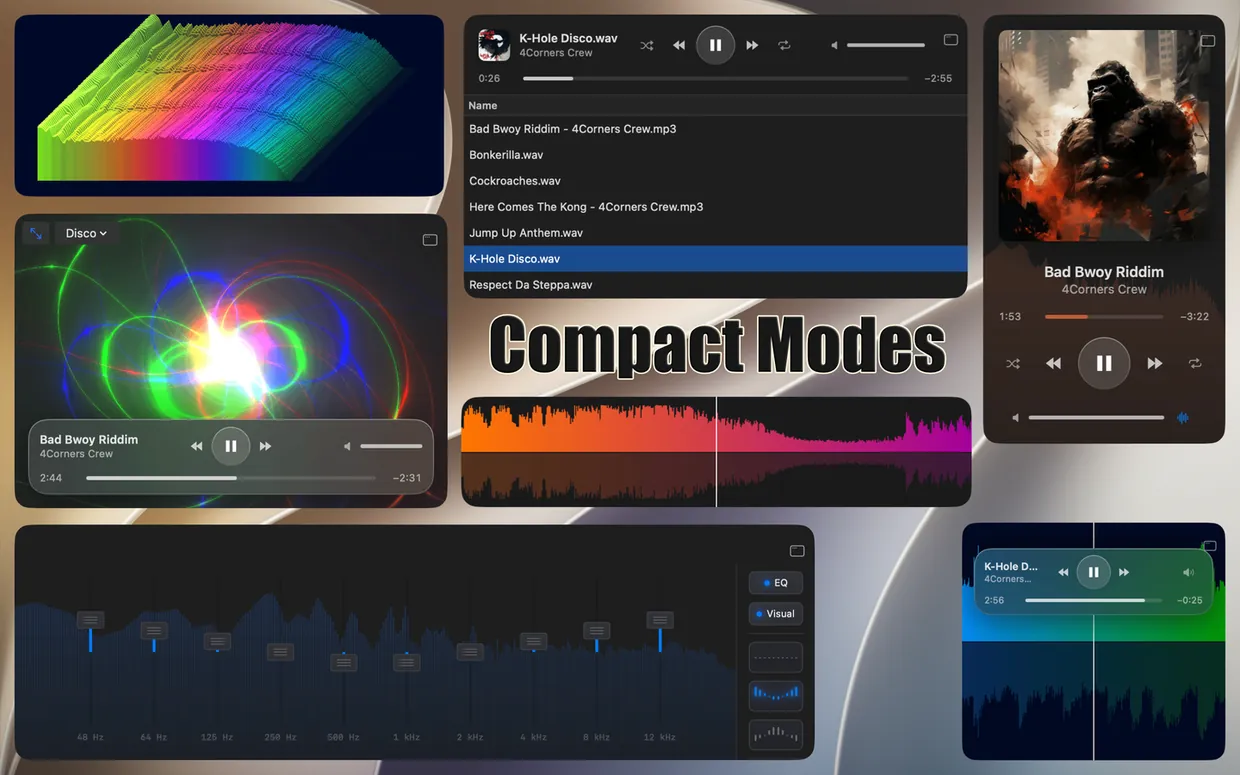
The five compact modes of Ampado PRO
Music usually plays in the background while you work, write or produce. That doesn’t call for a big window with a sidebar and file list, but for a small player that only shows what matters right now. That is exactly what Ampado’s compact modes are for.
Until now there were four views, each showing only a list or a waveform. With version 6 we rebuilt the compact modes from the ground up: there are now five, including a classic MP3 player with large cover art and a mini equalizer, and all of them have new controls.
The five compact modes at a glance
Each mode is made for a different situation. You can freely resize the window, and the content adapts.
Waveform
Just the waveform of the current song, as a narrow strip at the edge of the screen or large across the full width. Ideal when you want to keep an eye on the course of a song while producing or DJing. Clicking in the waveform jumps to that position.
VisualFX
The visualizers in their own small window, from the frequency analyzer to the shader effects. Perfect as an eye-catcher on a second screen or as moving decoration next to your work.
EQ
New in version 6: the equalizer as a mini window, with the ten sliders, the frequency display in the background and, on the right, the EQ and Visual switches and your presets. That way you adjust the sound without opening the big window.
MP3 Player
New in version 6: the classic player look with large, square cover art, and below it the title, artist, scrub bar, playback buttons and volume. The cover grows and shrinks with the window. With radio, the station logo appears, and you can drag files straight into the window.
List
The list of the source that is currently playing, with the controls at the top. It replaces the previous modes for files, playlist, radio and Apple Music: when the radio is playing, you see the station list with search, when a playlist is playing, the playlist. So you never have to switch first.
The new controls
All compact modes have new controls with a scrub bar and time display. In Waveform and VisualFX they float over the content as a frosted glass element, with title, previous, play/pause, next, volume and timeline. They only appear while the mouse is over the window, otherwise the whole area belongs to the waveform or the visualizer.
In List, the controls sit fixed at the top: cover art, title and artist on the left, shuffle, previous, play/pause, next and repeat in the middle, volume on the right, and below that the time, scrub bar and remaining time. When the window gets narrow, the volume turns into a small speaker button.
For every source
Waveform, VisualFX, EQ and MP3 Player always show what is currently playing. And the list adapts to the source:
- •Files and playlists: the file list or, when the Playlist section is selected, the playlist.
- •Radio: the station list with search and a menu for Top Stations, Favorites, My Stations and genres. More in Internet radio on your Mac.
- •Apple Music: the Apple Music list with search. Volume and EQ are not available here, because Apple Music plays through Apple’s own system.
- •Auto-DJ: the queue of the mix. You can drag files and folders straight onto it. The waveform shows both decks, and the MP3 Player shows the cover and title of the song currently playing. More about the Auto-DJ.
- •Nothing playing: the list of the selected section, so you can start something right away.
How to switch to compact mode
Getting into compact mode has become easier with version 6:
- •Button at the top right: one click opens a menu with the five modes, and your choice appears immediately.
- •In compact mode: one click on the same button exits it again, and a right-click opens the menu to switch modes.
- •Main menu: under View › Compact Mode you pick a mode directly.
- •Keyboard shortcut: ⌃⌘C opens the last selected compact mode and closes it again.
Ampado remembers your compact mode and restores it the next time you launch it. So if you always use Ampado as a mini player, there is nothing to set up again.
Three tips for everyday use
- •Always visible: combine a compact mode with Always On Top (⌥⇧⌘T). Then the mini player stays above all other windows, for example above your DAW.
- •Nicely see-through: with the Glass theme the desktop shimmers through, and the MP3 Player then looks like a widget.
- •Party screen: start the Auto-DJ and show VisualFX full screen or large on a second display while Ampado mixes the songs.
Compact modes in Ampado PRO
The five compact modes are part of Ampado PRO, a one-time purchase without subscription. You also get visualizers, an equalizer with custom presets, playlists, the Auto-DJ, loudness analysis and much more. The free version Ampado (lite) has no compact modes, but there too you can keep the window above other apps with Always On Top.
Frequently asked questions
Is there a mini player version of Ampado?
Yes. Ampado PRO has five compact modes: Waveform, VisualFX, EQ, MP3 Player and List. You choose them via the button at the top right, via View › Compact Mode or with ⌃⌘C.
Do the compact modes also work with radio and Apple Music?
Yes, all five modes work with every source: files, playlists, internet radio, Apple Music and Auto-DJ. With Apple Music, volume and EQ are not available.
How do I exit compact mode?
Click the button at the top right of the window or press ⌃⌘C. Right-clicking the button switches to another compact mode instead.
Can the mini player stay always on top?
Yes. Turn on Always On Top in the Window menu or press ⌥⇧⌘T. Ampado then stays visible above all other windows in compact mode.
Small but mighty
You get the five compact modes with Ampado PRO for $7.99 as a one-time purchase without subscription. Try out which mode suits your screen best.