Listen to Internet Radio on Your Mac for Free
With version 6, internet radio in Ampado (lite) is fully unlocked. Thousands of stations from around the world, favorites, your own stations and a live waveform, free and without sign-up. On top of that, the update brings many more new features to the free version.
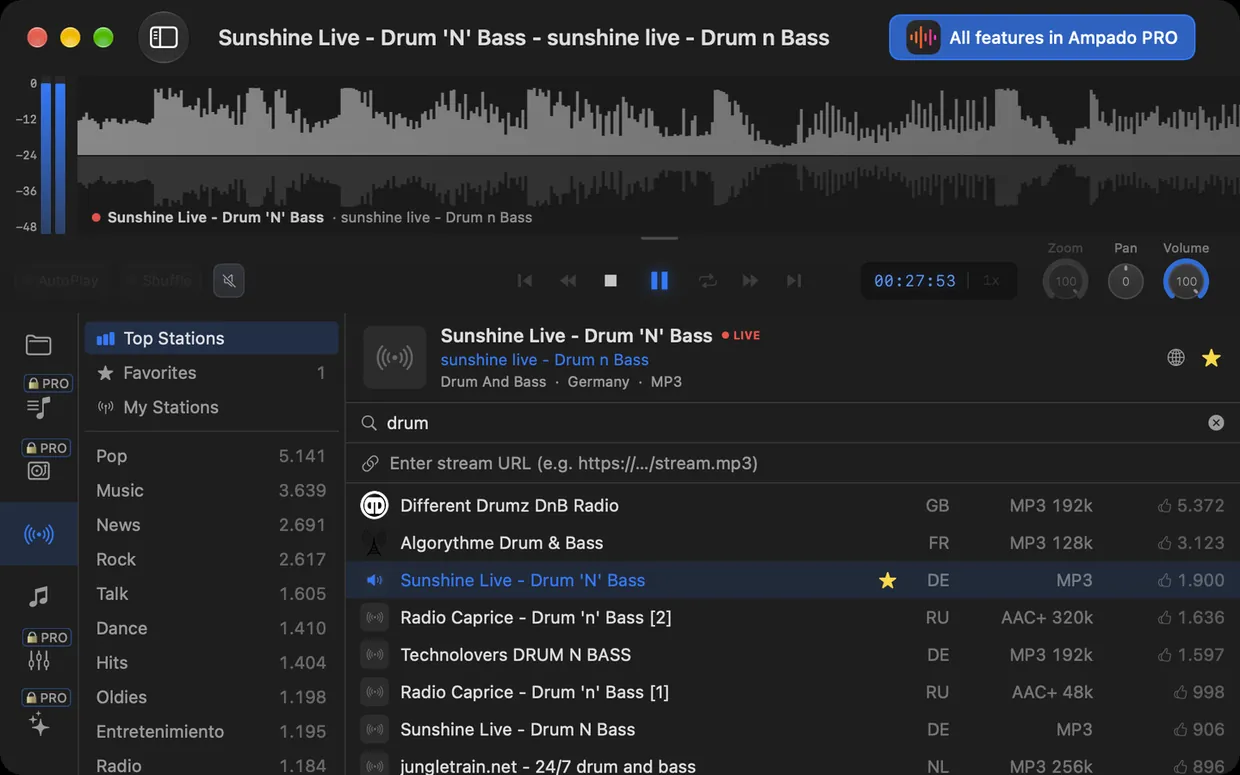
Internet radio in Ampado (lite) 6: search stations, play them and save them as favorites
Of course you can listen to the radio on your Mac in a browser. But then the stream plays in some tab, your stations are scattered across bookmarks, and after the next restart at the latest you have to gather everything again. Apple’s Music app does offer radio, but mainly Apple Music’s own stations.
It is easier with a player that has internet radio built in. Ampado (lite) 6 gives you exactly that, for free in the Mac App Store. In this article we show you how radio works in Ampado, how to add your own stations and what else version 6 brings to the free version.
Internet radio now completely free
Until now, the full internet radio was reserved for Ampado PRO. With version 6 it is fully unlocked in Ampado (lite) as well: you search for stations, play them, save favorites and add your own stations. No limits, no ads, no sign-up and no subscription.
The stations come from a large, worldwide maintained database with thousands of stations from almost every country. From big, well-known broadcasters to small niche stations for drum and bass, jazz or classical music, everything is there.
How to listen to internet radio in Ampado
- 1.Download Ampado (lite) for free from the Mac App Store and open the app.
- 2.Click the radio icon in the sidebar. Under Top Stations you see the most popular stations, below that the genres with their number of stations.
- 3.Choose a genre such as Pop, Rock, News or Dance, or type a name or style into the search field, for example “drum” or “jazz”.
- 4.One click on a station starts playback. The list shows the country, format, bitrate and how popular the station is.
- 5.If you like a station, click the star. It goes into your Favorites and is right at hand next time.
Above the playing station, Ampado shows its name, genre, country and format. The globe icon opens the station’s website, if it has one. Radio uses the same controls as your own files: pause, volume, mute and keyboard shortcuts work as usual.
Add and name your own stations
Your favorite station is not in the list, or you listen to a stream only you know about, say from a club, a university or your own server? Then simply add it yourself. Paste the stream URL into the field below the search, for example an address ending in .mp3, and Ampado plays the stream right away.
New in version 6: you can give your own stations a name and rename them at any time. You will find them all under My Stations. And if you ever reset Ampado’s settings, your favorites, your own stations and recently opened locations are kept.
Listen to the radio and see it
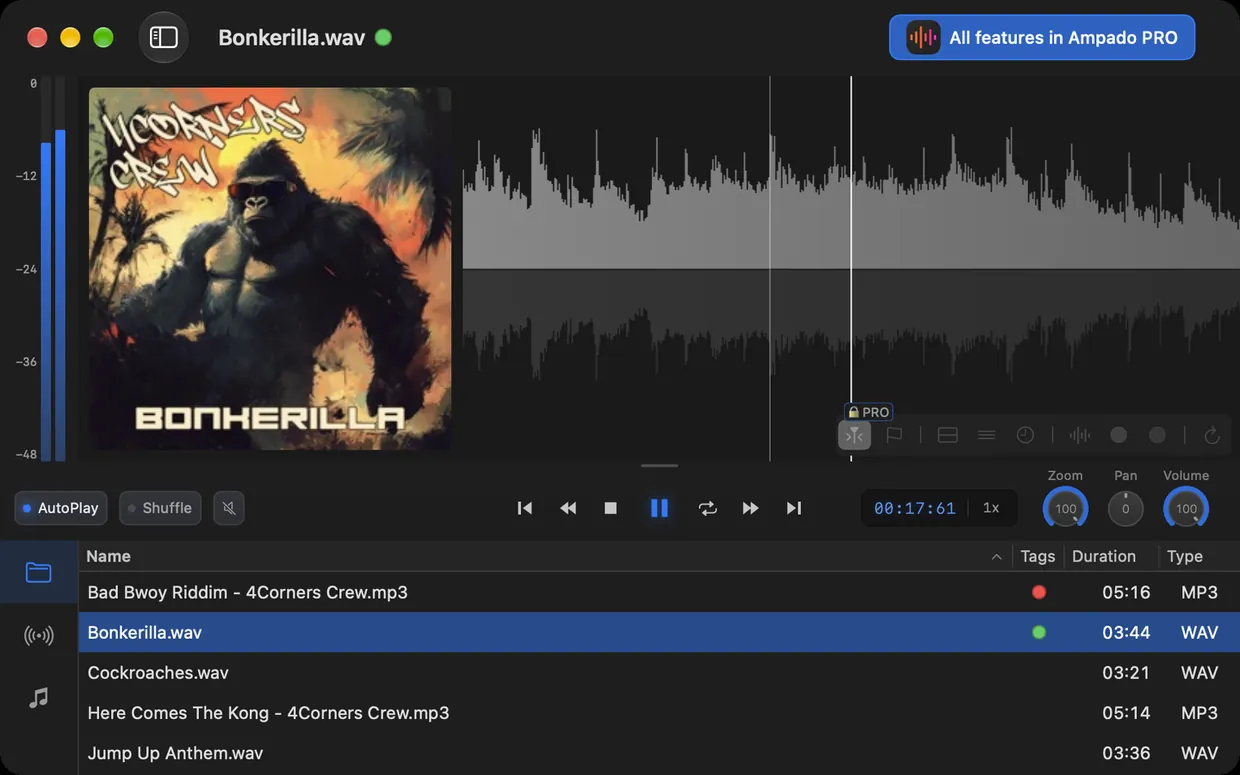
What sets Ampado apart from a simple radio player: you see what you hear. With radio, too, the waveform builds up live during playback, and the level meter next to it shows the volume of the left and right channels in real time.
With version 6 you can adjust the view: resize the waveform with the handle below it, and show or hide the level meter and cover art via the menu, the settings or keyboard shortcuts. That gives the waveform more room, or makes the window nice and compact when the radio is just playing in the background.
What else is new in Ampado (lite) 6
Radio is the biggest gift to the free version, but not the only one. Ampado (lite) 6 also brings these new features:
- •Cover art next to the waveform: the album cover appears right next to the waveform.
- •Shuffle and mute right in the controls bar, in the menu and via keyboard shortcuts.
- •Always on Top: keep the window above all other apps, handy for radio in the background.
- •Larger controls bar for high-resolution displays.
- •A sidebar the way you like it: freely arrange and hide the tabs, a wider sidebar for long folder names and a tooltip with the full name.
- •Path display above the file list, so you always know which folder you are in.
- •FLAC and OGG tags appear in the file list, and drag and drop from other apps such as mp3tag works reliably. More about FLAC in Play FLAC on Your Mac.
Even more radio with Ampado PRO
Ampado (lite) is all you need for radio. If you want more, Ampado PRO for $7.99 as a one-time purchase adds the 10+1-band equalizer with custom presets, visualizers and full-screen visuals that also react to the radio, and the compact modes, which let the radio run as a mini player in a corner of your screen. Plus playlists, Auto-DJ, Tag Editor and much more.
Frequently asked questions
Is the internet radio in Ampado really free?
Yes. Since version 6, internet radio is fully unlocked in Ampado (lite), with no ads, no sign-up and no subscription. Ampado (lite) is available for free in the Mac App Store.
How many radio stations are there in Ampado?
Thousands of stations from around the world, sorted by genres such as Pop, Rock, News, Talk, Dance or Oldies. You can search by name and style and see the country, format and bitrate of every station.
Can I add my own radio stations?
Yes. Paste the station’s stream URL into the field below the search. Ampado plays the stream right away, and you can give it a name of your own. You will find your stations under My Stations.
Do I need an account or a subscription for the radio?
No. All you need is an internet connection. You only need an Apple Music subscription if you also want to stream songs from the Apple Music catalog, more on that in Apple Music in Ampado.
Which macOS version do I need?
Ampado 6 runs on macOS 15.0 (Sequoia) or later.
Start listening now
Download Ampado (lite) for free, click the radio icon and pick your first station. Click the star to save it as a favorite. You can find more about the free version on the Ampado (lite) page.