Glass Theme, Always on Top and a Sidebar Made to Measure
With version 6, Ampado adapts even better to you and your Mac: a see-through Glass theme, a window that stays above all other apps and a sidebar that only shows what you really need.
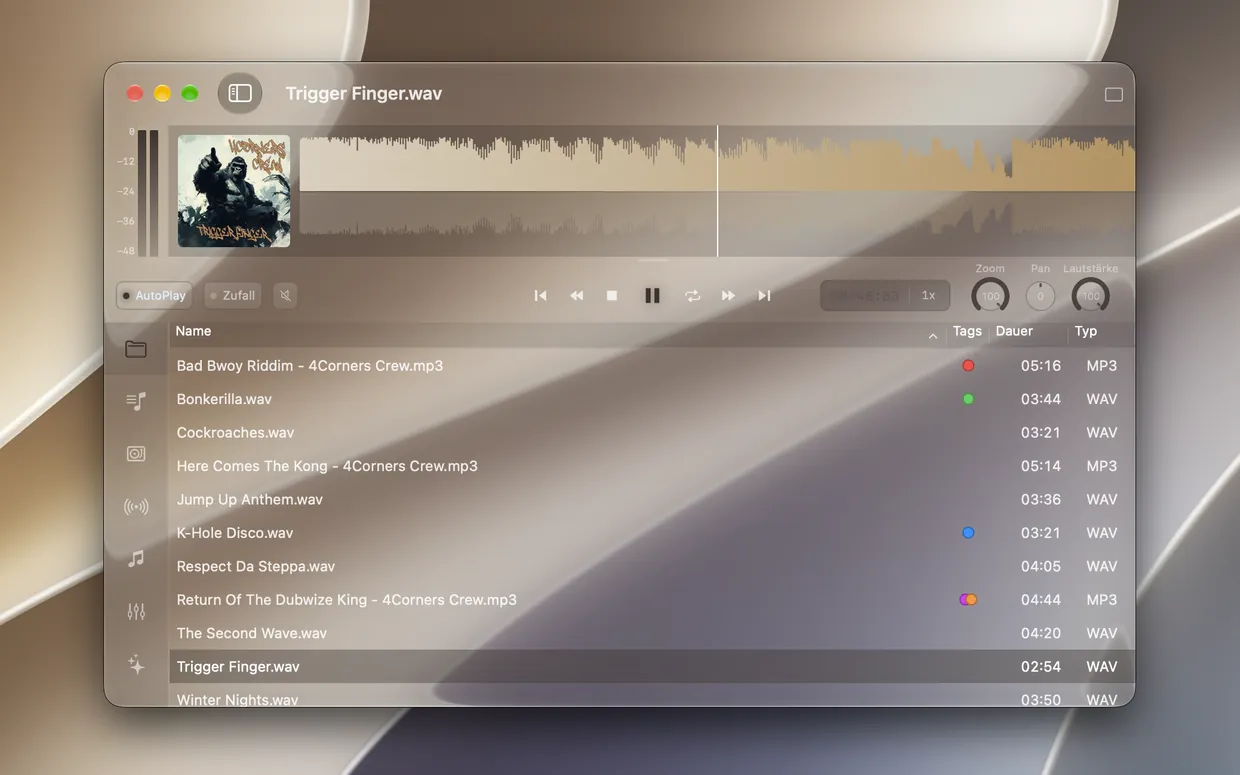
Ampado PRO in the new Glass theme
A music player often runs in the background for hours. That makes it all the more important that it looks good, stays out of the way and shows exactly the tools you need right now. That is what the Appearance part of the Ampado 6 update is all about.
In this article we show you the new Glass theme, the Always On Top feature, the fully customizable sidebar and a few smaller new features that let you set up Ampado the way that suits you.
The new Glass theme with a Liquid Glass look
With macOS 26, Apple introduced the Liquid Glass design: translucent surfaces that let the background shimmer through. Ampado picks up this look with the new Glass theme. The window background becomes see-through and subtly tinted, and the waveform, controls and lists sit on your desktop like on a pane of glass. Here is how to turn it on:
- 1.Open Ampado’s settings and choose the Appearance tab.
- 2.Under Appearance, turn on the Glass switch.
- 3.Use the slider between Clear and Frosted to set how much the background shows through.
The Glass theme automatically adapts to the light and dark modes of macOS. Buttons, knobs and the header of the file list get the glass look too, so everything looks all of a piece.
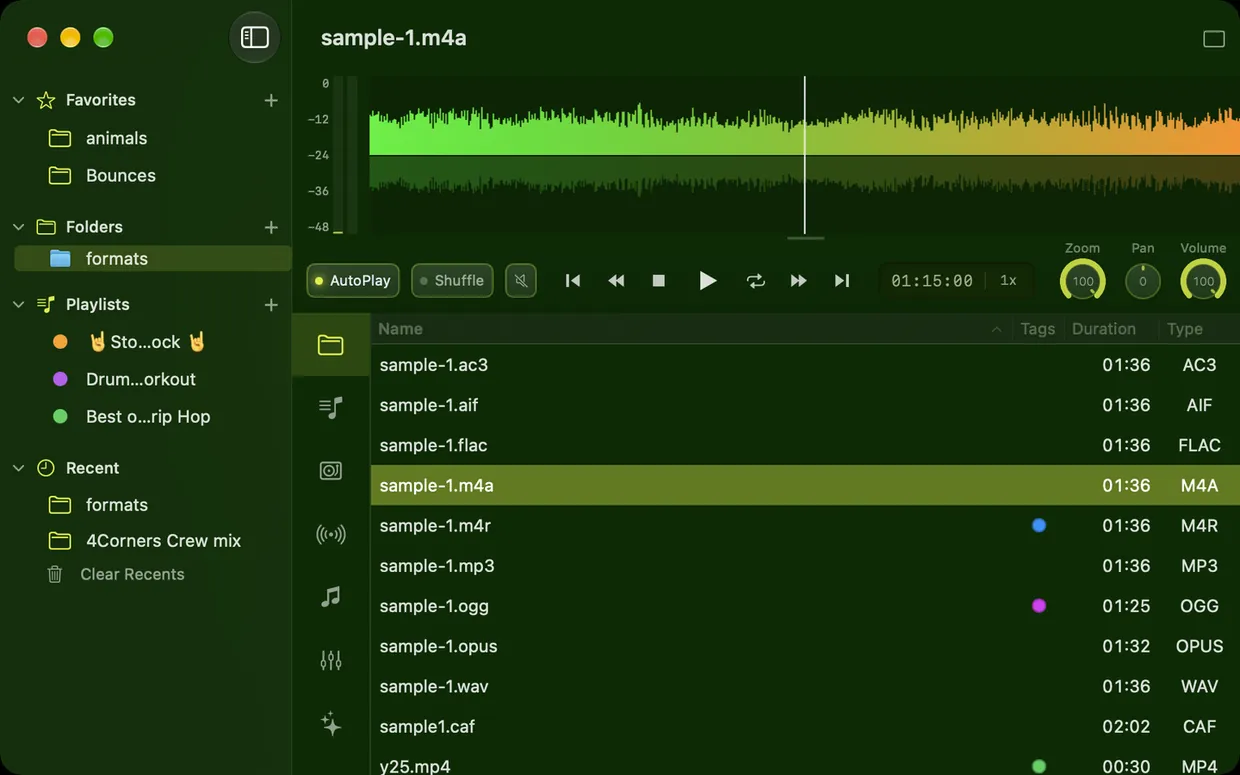
Prefer bold colors? Then choose the Custom theme under Appearance and set the accent color and background color yourself. You set the two waveform colors in the Waveform section, for example a green theme with a waveform running from green to orange. The Glass theme, custom themes and waveform colors are part of Ampado PRO.
Always On Top
When you work in another app, the player normally disappears behind its window. With Always On Top, Ampado stays visible above all other windows. You find the feature in the Window menu or toggle it with the keyboard shortcut ⌥⇧⌘T.
This is handy when you produce music, for example: you work in your DAW but always have Ampado’s waveform and controls in view, and you can quickly compare your mix with a reference track. Or you listen to internet radio in the background and want to see what is playing at any time.
Always On Top goes especially well with the compact modes of Ampado PRO: as a mini player with waveform, visualizer or large cover art, Ampado stays small in a corner of your screen and is still always visible. The Always On Top feature is also available in the free version Ampado (lite).
The sidebar the way you want it
On the left side of Ampado are the sections: Files, Playlist, Auto DJ, Radio, Apple Music, Equalizer and Visuals. Not everyone needs all of them. If you only listen to the radio, you don’t need the Auto DJ, and if you don’t use Apple Music, you can simply make that section disappear. With version 6 you decide which sections appear and in which order:
- 1.Arrange: drag a section with the mouse to the position you want.
- 2.Hide: right-click a section and choose “Hide”.
- 3.Show again: right-clicking a section or the empty area below opens the Show Sections menu. There you check hidden sections again. Reset Sections restores the original order.
Ampado remembers your setup and shows the sidebar exactly like this the next time you launch it. By the way, the last visible section cannot be hidden, so you never end up looking at an empty window.
A better overview of your folders
Ampado is folder-based, which is why version 6 also improves the folder view. This helps especially when you go through lots of recordings in nested folders, for example on an external drive:
- •Wider sidebar: you can now drag the folder sidebar much wider, so even long folder names can be read in full.
- •Tooltip: when you hover over a folder, its full name appears.
- •Folder path: if you like, Ampado shows the path of the selected folder above the file list. Clicking part of the path jumps straight to that folder. Turn it on in the settings under Appearance with Show folder path above file list.
- •Rename folders: in Ampado PRO you rename folders with a right-click right in the sidebar, without switching to the Finder. Markers, regions and playlists are kept.
A bigger controls bar, more room for the waveform
On large, high-resolution displays the controls can look a little small. That is why you can set the Controls bar size to Large in the settings under Appearance. Buttons, knobs and the time display then become a quarter larger.
Conversely, you can make room for the waveform: show or hide the peak meter and cover art via the menu, the settings or keyboard shortcuts, with ⌃⌘P for the peak meter and ⌃⌘I for the cover art. The waveform then uses the full width of the window.
What is in lite, what is in PRO?
Always On Top, the customizable sidebar, the wider folder sidebar with tooltip and folder path, the large controls bar and showing or hiding the peak meter and cover art are also available in the free version Ampado (lite). The Glass theme, custom themes, waveform colors, renaming folders and the compact modes are part of Ampado PRO.
Frequently asked questions
How do I turn on the Glass theme in Ampado?
Open the settings, choose Appearance and turn on the Glass switch under Appearance. The slider between Clear and Frosted sets how much the background shows through. The Glass theme is part of Ampado PRO.
How do I keep the Ampado window always on top?
Choose Always On Top in the Window menu or press ⌥⇧⌘T. Ampado then stays visible above all other windows, also in the free version Ampado (lite).
How do I hide and show sections in the sidebar?
Right-click a section and choose “Hide”. Right-click and Show Sections brings it back, and Reset Sections restores the original order.
Does the Glass theme require macOS 26?
No. On macOS 26, Ampado uses Apple’s real Liquid Glass. On macOS 15, a similar translucent effect creates the glass look. So the Glass theme works on every Mac that runs Ampado 6.
Make Ampado yours
You get the Glass theme, custom colors and compact modes with Ampado PRO for $7.99 as a one-time purchase without subscription. You can also try Always On Top and the customizable sidebar for free with Ampado (lite).