Import Playlists and Move Them to a New Mac
Your playlists are stuck in another app, on a Windows PC or on your old Mac? With Ampado 6 you bring them over in a few clicks, as M3U, M3U8, PLS or XSPF. And after moving to a new Mac, your playlists are complete again in no time.
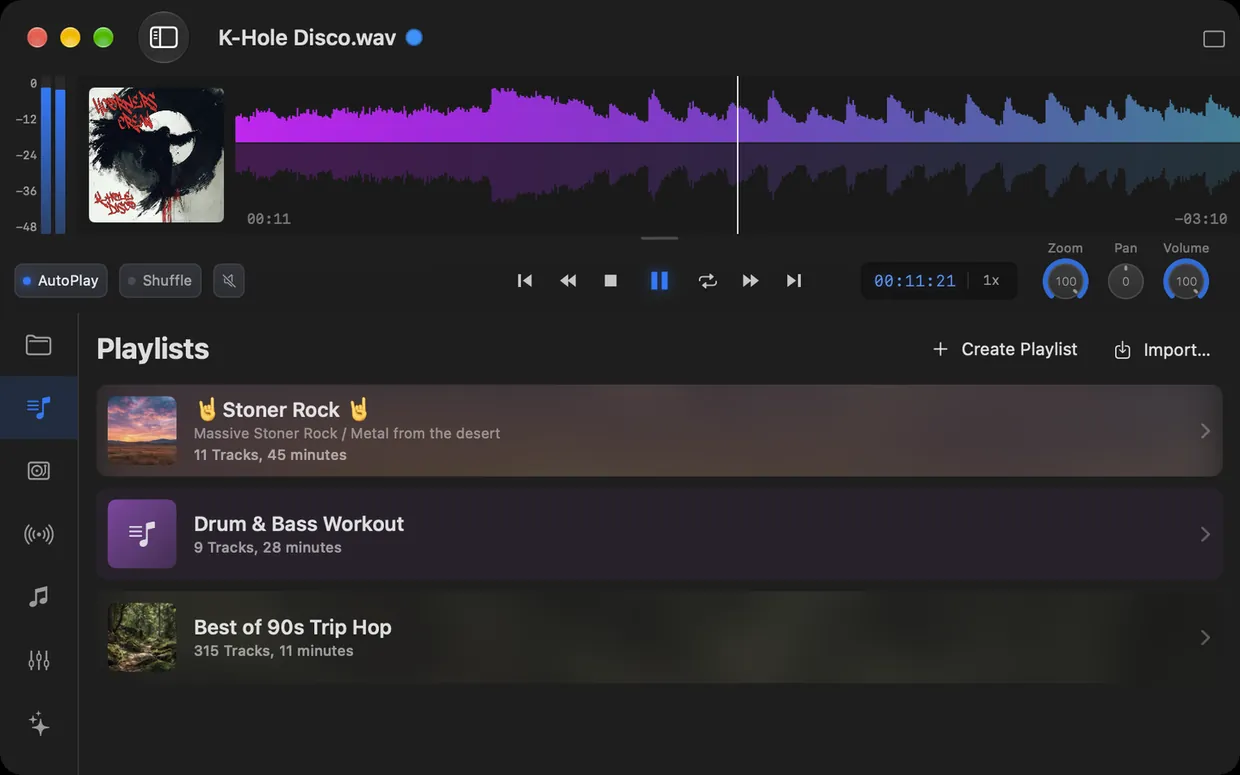
Playlists in Ampado PRO with the Import button
Over the years, a lot of time and love goes into playlists: the perfect DJ set, the music for your workout, the collection for long drives. Nobody who switches apps wants to do that work all over again. And when you move to a new Mac, you expect everything to work as usual.
With version 6, Ampado PRO can do both. You import playlists from other apps, Ampado looks for missing tracks on request, and after a move you restore access to your music with a single click. Here is how it works.
Which playlist formats can Ampado import?
Ampado understands the common formats that almost every music player can export:
- •M3U and M3U8: the classic, from Music, VLC, foobar2000, Winamp, MusicBee, Swinsian or rekordbox, among others. M3U8 is the modern variant with Unicode, so accents and special characters come out right.
- •PLS: a simple format used by Winamp and many older players, among others.
- •XSPF: the open XML format, for example from VLC. Ampado also takes over the playlist’s description and image.
- •Text export from the Music app: the text file Apple’s Music app creates when you export a playlist.
Important: a playlist file only contains references to files, not the music itself. The tracks therefore need to be audio files on your Mac or on a connected drive. Playlists from streaming services such as Spotify, Tidal or YouTube Music cannot be imported.
How to import a playlist
There are three ways to bring a playlist into Ampado:
- •Via the menu: choose Import Playlist… and open the playlist file.
- •In the Playlist section: click Import… at the top right.
- •By drag and drop: drag the playlist file from the Finder onto the playlists in the sidebar or onto the Ampado icon in the Dock.
The new playlist is named after the file. Ampado understands absolute and relative paths, so also playlists stored next to the music in a folder, as well as paths in file:// format. When everything is found, Ampado briefly reports how many tracks were imported.
Bring over playlists from the Music app
Want to use your playlists from Apple’s Music app (formerly iTunes) in Ampado? Here is how:
- 1.Select the playlist in the Music app.
- 2.Choose File › Library › Export Playlist… in the menu and pick M3U or text as the format.
- 3.Import the file into Ampado as described above.
This brings over the tracks that exist as files on your Mac, meaning music you imported yourself or bought and downloaded. Songs that are only streamed from the Apple Music catalog are not files and are therefore missing. You can listen to them directly via Apple Music in Ampado instead.
Find missing tracks automatically
Especially with playlists from another computer, the paths are often no longer correct. On the Windows PC the music was in C:\Music, on the Mac it is in the Music folder or on an external drive. Ampado then reports, for example, “12 of 40 tracks imported” and offers to look for the missing tracks.
Click Search Folder… and choose the folder with your music. Ampado searches it, including all subfolders, for the file names and adds the tracks it finds to the playlist. If the music is in a folder Ampado has no access to yet, Ampado asks you to grant access once.
Export playlists as M3U8
It also works the other way round. Right-click a playlist in the sidebar and choose Export as M3U8…. You can open the file in other apps, keep it as a backup or pass it on to someone who has the same files.
Ampado also stores the playlist’s description, color and image in the file. If you later import it into Ampado again, for example on another Mac, the playlist is complete again, image included. Other players simply ignore this extra information and play the tracks as usual.
Moving to a new Mac
A customer made us aware of a problem: after moving to a new Mac with Migration Assistant, Ampado showed all playlists with the right number of tracks, but the playlists themselves were empty. The reason: for security reasons, macOS remembers folder access separately for each app, and this access only applies on the Mac where it was granted.
Version 6 solves this. Ampado no longer hides unavailable tracks, but keeps showing them and displays a note in the playlist with the number of tracks that are not available. Here is how to bring them back:
- 1.Open a playlist with the “Tracks not available” note.
- 2.Click Grant Folder Access…. Ampado suggests the folder where the missing tracks are.
- 3.Confirm the folder, ideally your whole music folder. The tracks are back right away.
The access applies to the whole folder, so also to all other playlists with tracks from it. Your playlist data is never deleted, even when tracks are missing. And if the music is in a completely different place on the new Mac, export helps: export the playlists as M3U8 on the old Mac and import them on the new one, and the search for missing tracks does the rest.
Playlists in Ampado PRO
Playlists with import and export are part of Ampado PRO. You can design them with your own image, color and description, search them and hand them straight to the Auto-DJ, which mixes them with crossfades. If you are coming from Winamp, you will find even more that feels familiar in the Winamp alternative for Mac.
Frequently asked questions
Which playlist formats can Ampado import?
M3U, M3U8, PLS and XSPF, as well as the text export from Apple’s Music app. Ampado can export playlists as M3U8.
Can I import Spotify playlists into Ampado?
No. Ampado only imports playlists with local audio files. Playlists from streaming services such as Spotify, Tidal or YouTube Music contain no files that Ampado could play.
How do I bring over a playlist from a Windows PC?
Export the playlist as M3U in your old app, copy the playlist and the music to the Mac and import the playlist into Ampado. If Ampado can’t find tracks because the Windows paths don’t match, click Search Folder… and choose the folder with the music.
My playlists are empty after moving to a new Mac. What can I do?
Open the playlist and click Grant Folder Access… in the “Tracks not available” note. Choose your music folder, and the tracks are back right away, also in all other playlists with tracks from that folder.
Can I export playlists from Ampado?
Yes. Right-click the playlist in the sidebar and choose Export as M3U8…. Description, color and image are saved too and restored when you import the file into Ampado again.
Bring your playlists along
You get playlists with import, export and moving help with Ampado PRO for $7.99 as a one-time purchase without subscription.