Measure LUFS and True Peak: the Targets for Streaming
Spotify, Apple Music and YouTube even out the loudness of all songs. If you know the targets, mastering gets more relaxed. Here are the guideline values of the most important platforms, and how to measure LUFS and true peak with the new meters in Ampado.
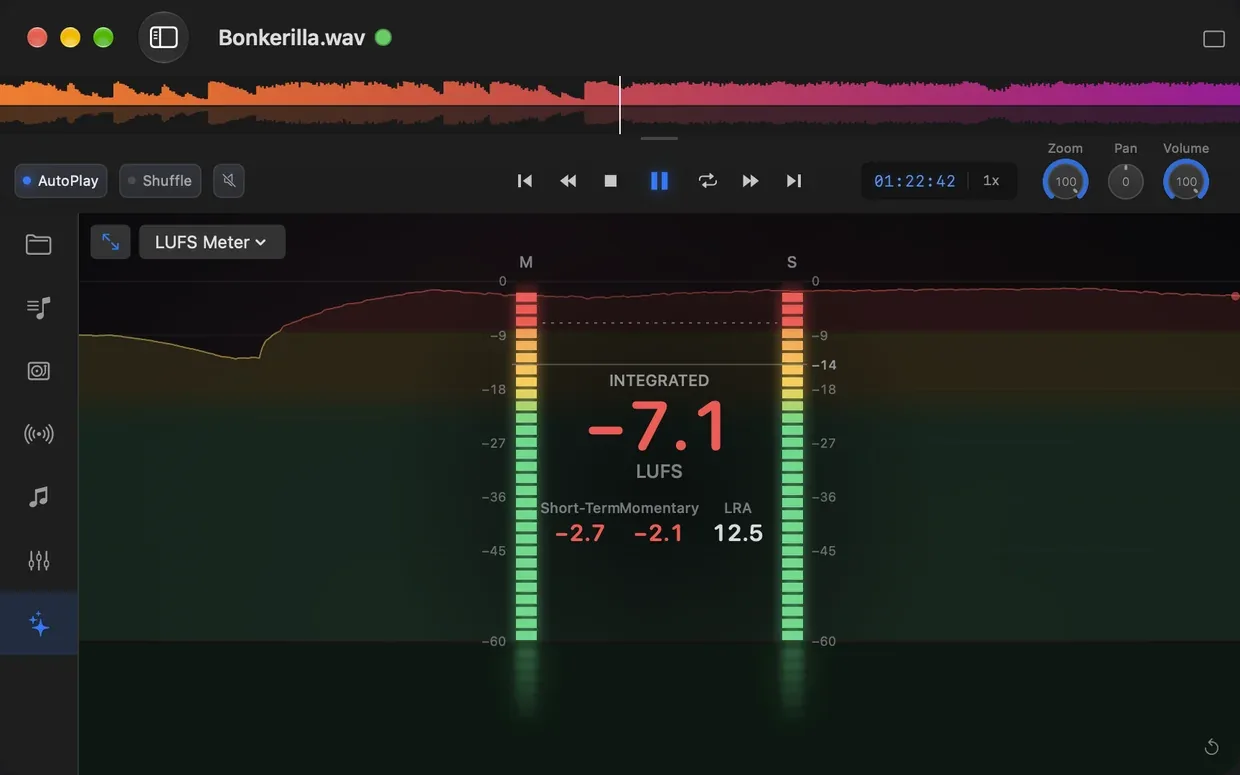
The new LUFS meter in Ampado PRO with the target mark at −14 LUFS
How loud does my song need to be? It is one of the most common questions in mixing and mastering. The answer used to be “as loud as possible”, because louder songs stood out more on the radio and in playlists. Today things are different: streaming services measure the loudness of every song and simply turn songs that are too loud down.
So what counts is no longer the peak level, but loudness in LUFS. In this article we explain the key terms, show you the guideline values of Spotify, Apple Music, YouTube and others, and how to measure with the two new visualizers LUFS Meter and True Peak Meter in Ampado 6.
LUFS, true peak and more, briefly explained
LUFS stands for Loudness Units relative to Full Scale. Following the ITU-R BS.1770 standard, the value measures loudness the way our ears perceive it. One unit equals one decibel. These are the values you will come across most when measuring:
- •Integrated (LUFS-I): the average loudness over the whole song. This is the value streaming services normalize to.
- •Short-Term and Momentary: the loudness of the last three seconds and the last 400 milliseconds. They show you how loud individual parts such as the chorus or the drop are.
- •Loudness Range (LRA): how much the loudness varies within the song, measured in LU. Small values mean heavily compressed music, large ones lots of dynamics.
- •True peak (dBTP): the real peak of the signal, including between the samples. It can be higher than the sample peak a normal level meter shows.
Why does true peak matter? Converting to AAC, MP3 or Ogg Vorbis creates new peaks. If your master is already close to 0 dB, these peaks can clip and distort audibly. A little headroom protects against that.
The targets of the streaming services
These are the guideline values for loudness normalization given by platforms, mastering studios and trade media:
| Platform | Loudness | True peak | Note |
|---|---|---|---|
| Spotify | −14 LUFS | −1 dBTP | For masters louder than −14 LUFS, Spotify recommends −2 dBTP. Listeners can also choose “Loud” (−11) or “Quiet” (−19). |
| Apple Music | approx. −16 LUFS | −1 dBTP | Normalization via Sound Check, on by default. |
| YouTube | approx. −14 LUFS | −1 dBTP | Only turns down, quieter videos are not boosted. |
| Amazon Music | approx. −14 LUFS | −1 to −2 dBTP | Sources differ on the true peak. |
| Tidal | approx. −14 LUFS | −1 dBTP | Turns loud songs down. |
| Deezer | approx. −15 LUFS | −1 dBTP | Normalization cannot be turned off. |
| Podcasts | approx. −16 LUFS | −1 dBTP | Common recommendation, among others for Apple Podcasts. |
| Broadcast (EBU R 128) | −23 LUFS | −1 dBTP | Binding standard for TV and radio in Europe. |
Guideline values as of November 2026. Not every platform publishes its target, so some figures come from measurements and trade media. The services can change their values at any time.
What does this mean in practice? A master at −8 LUFS is played back about 6 dB quieter on Spotify. It then doesn’t sound louder than other songs, but because of the heavy compression it often has less punch and dynamics. A master at −14 LUFS, on the other hand, stays unchanged.
So you don’t have to master to exactly −14 LUFS. Many genres such as electronic, hip-hop or metal are deliberately louder, classical and jazz quieter. What matters is that you know where your song sits and how much it will be adjusted. A good compromise for all platforms: around −14 LUFS with a true peak of at most −1 dBTP.
LUFS and true peak for entire folders
With version 6, Ampado PRO measures the loudness of your files itself, without any extra plugins or a DAW. Here is how to see the values for a whole folder at a glance:
- 1.Open a folder or playlist with your songs, bounces or masters.
- 2.Show the LUFS and True Peak columns in the list view. Ampado analyzes the files in the background.
- 3.Click the column header to sort from quiet to loud. You spot outliers immediately.
The results are cached, so the next time you open the folder they are there right away. If a file changes, Ampado measures again. Your files are only read, never changed. You can find more about the analysis on the LUFS meter for Mac page.
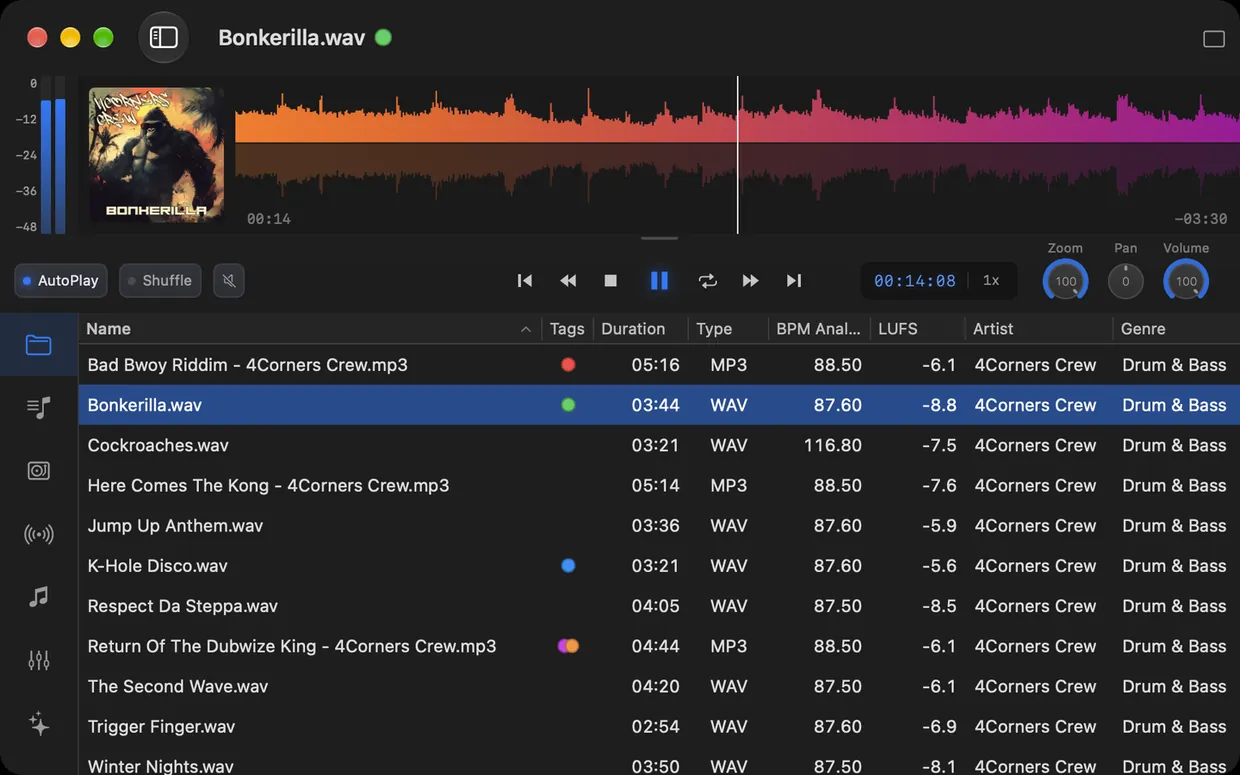
The new LUFS Meter
Besides the columns, there are two new visualizers in the Meters group. The LUFS Meter shows loudness in real time while the song plays:
- •Two LED bars for Momentary (M) and Short-Term (S), from −60 to 0 LUFS. They are green, turn yellow from about −24 LUFS and red above −9 LUFS.
- •The big numbers in the middle: Integrated LUFS, and below it Short-Term, Momentary and Loudness Range.
- •The target mark at −14 LUFS as a solid line, plus the current integrated loudness as a dashed line. That way you see immediately whether your song is above or below the Spotify value.
- •The history of the last 20 seconds as a curve in the background, so you can see how the loudness develops across verse, chorus and drop.
At the bottom right, the arrow button starts a new measurement, for example if you only want to measure the chorus. You choose the meter in the Visuals via the menu at the top left, also full screen or in the VisualFX compact mode if you like.
The new True Peak Meter
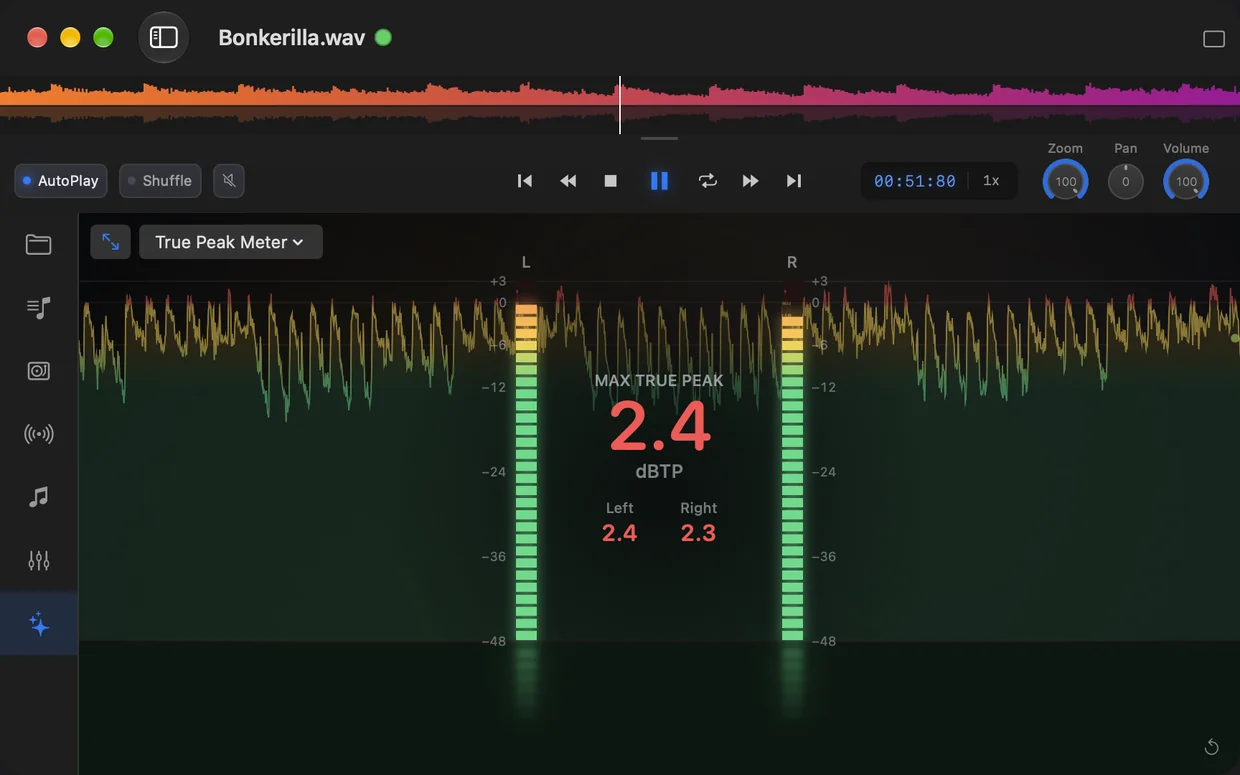
The True Peak Meter shows the real peaks of the left and right channels in dBTP, from −48 to +3 dBTP. The bars turn yellow from about −12 dBTP and red above −1 dBTP, exactly at the limit almost all platforms recommend. In the middle you see the highest measured true peak (Max True Peak) and the values for Left and Right.
Here too, the history of the last few seconds runs in the background. Red peaks in the curve show you where your master goes above −1 dBTP and could distort when converted to AAC or MP3.
Check your master in five steps
A typical routine before you upload a song to a distributor:
- 1.Export your master from the DAW to a folder, several versions if you like.
- 2.Open the folder in Ampado and show the LUFS and True Peak columns. Is a version clearly above −14 LUFS or above −1 dBTP?
- 3.Play the song with the LUFS Meter and watch how Short-Term behaves in the loudest parts.
- 4.Switch to the True Peak Meter and look out for red peaks.
- 5.Compare with a reference track from the same genre that you put in the same folder.
Tip: with Always On Top, Ampado stays visible above your DAW. That way you keep an eye on the meters while you adjust the limiter and export again.
Loudness analysis in Ampado PRO
The LUFS and True Peak columns and the two new meters are part of Ampado PRO. You also get BPM analysis, markers and regions for comparing individual passages, the equalizer with custom presets and the Auto-DJ.
Frequently asked questions
How many LUFS for Spotify?
By default, Spotify normalizes to −14 LUFS integrated and recommends a true peak of at most −1 dBTP, and at most −2 dBTP for masters louder than −14 LUFS. Louder songs are played back quieter.
How many LUFS for Apple Music?
Apple Music normalizes to about −16 LUFS with Sound Check. A master around −14 LUFS with at most −1 dBTP works just as well on Apple Music as on Spotify.
Do I have to master to exactly −14 LUFS?
No. −14 LUFS is not a must, but the value many services normalize to. Louder masters are played back quieter, but lose nothing except dynamics. Above all, keep the true peak below −1 dBTP.
How do I measure LUFS on the Mac?
With Ampado PRO: show the LUFS column in the file list or choose the LUFS Meter in the Visuals. Ampado measures according to ITU-R BS.1770 and EBU R 128, without extra plugins.
What is the difference between true peak and peak?
A normal peak meter measures the highest samples. True peak upsamples the signal and also finds peaks between the samples that occur during playback or conversion. That is why the true peak is often a little higher.
Measure before you upload
You get the LUFS and True Peak meters, sortable columns for entire folders and much more with Ampado PRO for $7.99 as a one-time purchase without subscription.