How to Use Markers, Regions & Loops in Ampado PRO
Ampado PRO lets you mark, select and loop any part of your file. The pro tools appear as soon as you want to go deeper. Here's how it works.
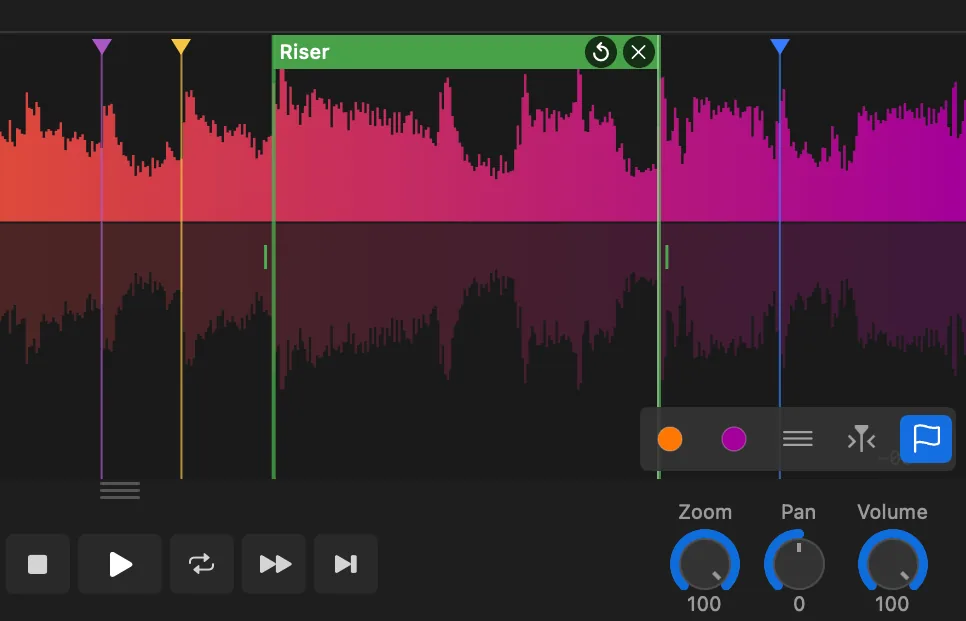
Ampado PRO waveform with colored markers, a named region and the loop icon
Markers, regions and loops are some of the most powerful features in Ampado PRO. They let you bookmark positions, highlight sections and repeat parts of a track – perfect for producers analyzing a mix, DJs preparing sets or anyone who wants to jump straight to the good parts.
To keep the interface clean, these pro tools only appear when you need them: simply hover over the waveform and the waveform toolbar shows up. You can also activate marker edit mode at any time via the main menu. Once you know the workflow, it's fast and intuitive. Let's walk through it.
Step 1: The Waveform Toolbar
Hover your mouse over the waveform and a toolbar appears. This toolbar gives you quick access to several waveform settings:
- • Waveform color – Change the color of the waveform display
- • 0 dB grid – Toggle a reference grid overlay on the waveform
- • Cursor follow mode – When enabled, the waveform scrolls automatically to keep the playback cursor in view. Disable it to scroll freely – especially useful when placing markers and regions
- • Marker edit mode (flag icon) – The last button in the toolbar. Activating this is the key to everything below
Tip: Disable cursor follow mode before you start placing markers or regions. This way you can scroll the waveform freely and position everything exactly where you want it.
Step 2: Setting Markers
With marker edit mode active (the flag icon is highlighted), you can place markers directly on the waveform:
- • Place a marker – Click anywhere on the waveform. A colored marker line appears at that position
- • Edit a marker – Click on an existing marker to open an edit sheet where you can change its color
- • Move a marker – Drag a marker to reposition it on the waveform
- • Delete a marker – Hover over a marker and click the X icon that appears
Good to know: all markers are saved automatically and matched to the file – even if you rename or move it. Your markers are never lost.
Step 3: Creating Regions
Regions work just like markers but cover a range instead of a single point. With marker edit mode active:
- • Create a region – Click and hold on the waveform, then drag to "draw" the region. When you release, an edit sheet opens where you can set a title and color
- • Resize a region – Hover over a region and drag the handles on its left or right edge
- • Move a region – Drag the title bar at the top of the region to reposition it
- • Delete a region – Hover over the region and click the X icon
Just like markers, all regions are saved automatically and stay linked to the file – even after renaming or moving it.
Step 4: Looping a Region
Loops in Ampado are region-based. There is no separate loop tool – instead, any region can become a loop:
- • Enable loop – Hover over a region. Next to the X icon, a loop icon appears. Click it to activate looping for that region
- • How it works – When the playback cursor enters a looped region, it repeats that section continuously until you disable the loop or move the cursor outside
- • Disable loop – Click the loop icon again to turn it off
This is ideal for practicing along to a section or analyzing a specific part of a mix.
Pro Tips
- • Zoom in first – For precise placement, zoom into the waveform before setting markers or drawing regions
- • Use colors and names – Give your regions descriptive titles and distinct colors to quickly identify sections like "Intro", "Drop" or "Riser"
- • Manage marker data – All markers, regions and loops are permanently saved and automatically matched to each file, even after renaming or moving. In the settings you'll find an option to delete all saved marker data at once
PRO Feature
Markers, regions and loops are available in Ampado PRO. The free version (lite) includes the waveform player but not the marker tools. Ampado PRO is a one-time purchase with no subscription – get it from the Mac App Store.