Compact Mode Strips Ampado Down to the Essentials
Four reduced views, switchable at any time. Perfect when you want to run Ampado next to other software or on a second monitor.
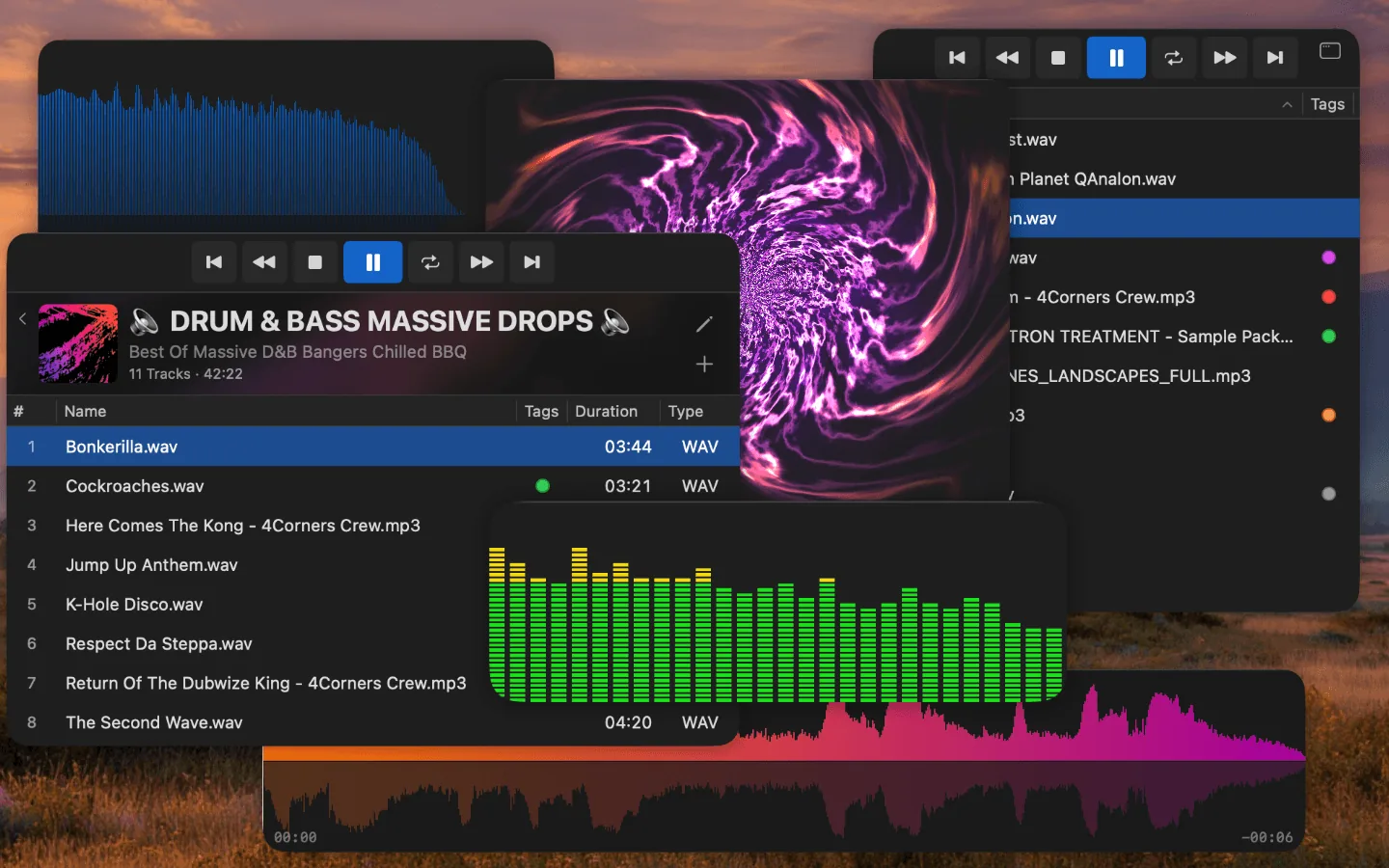
The four Compact Mode views in Ampado PRO at a glance
Sometimes you just want the player to run without blocking half the screen. That's exactly what Compact Mode in Ampado PRO is for: a reduced window that shows only what you actually need and leaves the rest out.
Four different views are available. All of them are floating windows without a title bar, and they can be freely resized and repositioned. Here's the overview.
Waveform Only
Just the waveform, nothing else. This view shows a wide, horizontal waveform strip with position and remaining time on the edges. Ideal when you want to keep an eye on the flow of a track without dealing with playlists or file lists.
Especially handy when working with long recordings, podcasts or mixes: you see at a glance where you are and what's coming up. A click on the waveform takes you directly to that spot.

Waveform Only: pure waveform with position and remaining time
VisualFX Only
The visualizer as its own view. No header, no controls in the way, just the selected effect in real time, synced to the music. For full cinema mode, the window scales freely to any size.
Ampado PRO ships with several visualizers: classic VU meters, shader-based fractals, spectrogram-style waveforms and more. Switch between them and find the look that fits your track.

Shader-based fractal visualizer
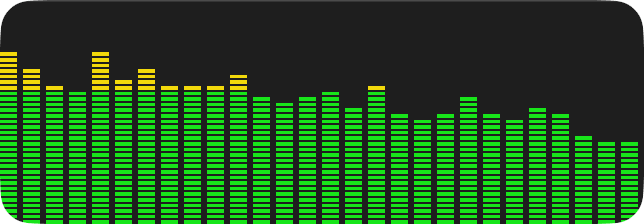
Classic VU meter with green and yellow bars
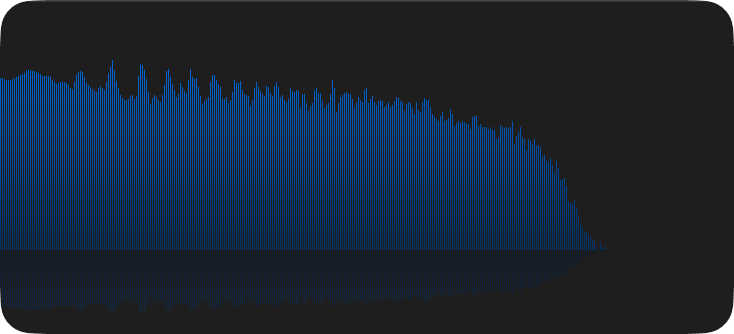
Spectrogram-style waveform effect in blue
Files List Only
The pure file list of the current folder, with the transport controls at the top. Sort and tag columns stay available, everything else falls away. Ideal when you want to move quickly through a folder of samples, recordings or podcast episodes.
Colored tag dots at the end of each row show you at a glance which files you've already flagged. Perfect for pre-selection in large collections.
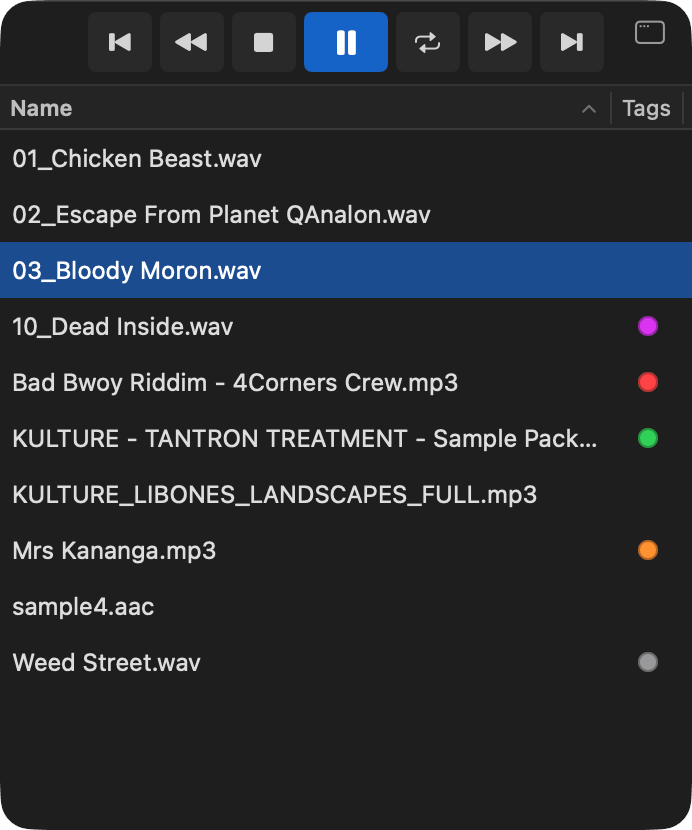
Files List Only: compact folder view with transport bar and tag colors
Playlist Only
Just like Files List Only, but instead of a folder this view shows your active playlist. Cover art, title, description and track count are visible at the top, with the tracklist below showing duration, format and tags.
Handy for DJ sets, curated sessions or just relaxed listening: you see exactly what's playing and what's next, without the main window taking over the whole screen.
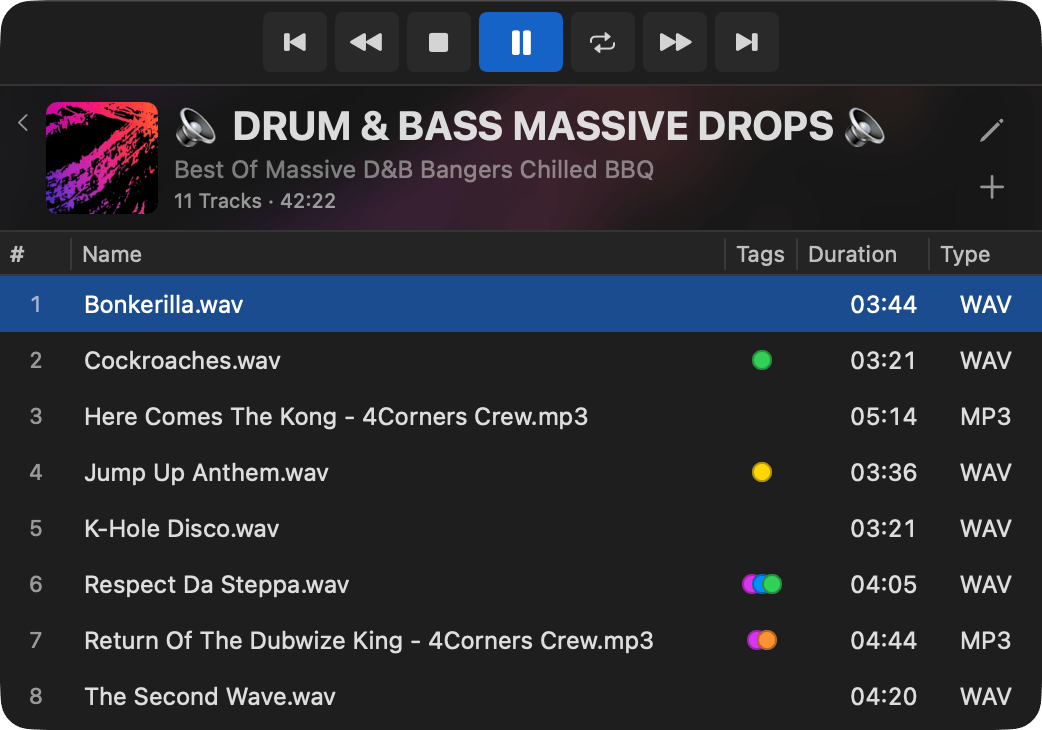
Playlist Only: active playlist with cover art and track details
Switching between views
When you activate Compact Mode, the reduced window opens. You switch between the four views from the menu, so you can pick the right layout for the task without leaving Compact Mode.
The window can stay floating on top if you like, and can be freely positioned and resized. Perfect for the second monitor, as an overlay on top of video editing software, or as a small constant companion while you work.
PRO Feature
Compact Mode with all four views is available in Ampado PRO. The free version (lite) includes the full player but not the reduced views. Ampado PRO is a one-time purchase with no subscription, available on the Mac App Store.