True Channel Separation in the Waveform
Left on top, right below: the waveform can now show both stereo channels separately. That way you instantly see what is happening on each channel. Plus, a tidied-up waveform toolbar.
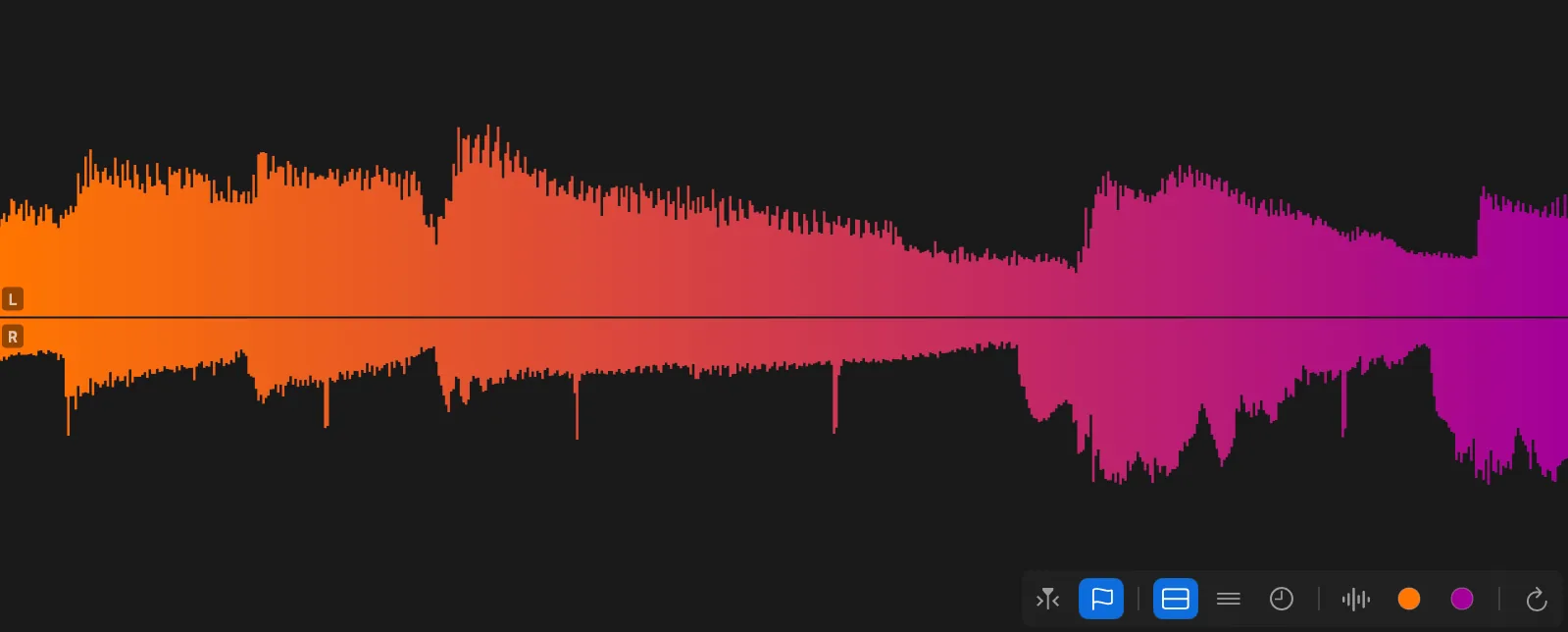
The waveform in Ampado PRO with separated channels: left on top, right below
The waveform is the heart of Ampado. You use it to navigate through your files, set markers and see at a glance where things get loud and where they get quiet. With this update, it can show even more: the left and right channels separately.
We have also completely redesigned the waveform toolbar. It is now more compact, clearly divided into sections and makes room for the new display options. In this post, we show you everything in detail.
From Mirrored to Truly Separated
Until now, Ampado displayed the waveform mirrored: the mix of both channels on top and a slightly darker reflection of it below. That looks nice and is perfectly fine for navigation, but it tells you nothing about what is happening on the left and what on the right channel.

With the new channel separation, the upper half now shows the left channel and the lower half the right channel, each with its own real, independent signal. Both halves are drawn at the same scale and at full brightness. That way you can compare the channels directly.

What Channel Separation Is Useful For
With most songs, both halves look similar. It gets interesting exactly when they differ. An instrument panned hard left, a ping-pong delay bouncing between the sides, or a mix that is louder on one side: you can now see all of this directly in the waveform.
Flaws in recordings also stand out immediately. If one channel is silent, noticeably quieter or clipping, you spot it before you even hear it. With podcasts or interviews where each voice is on its own channel, you can see at a glance who is speaking.
Combined with the dB grid lines, the separated waveform becomes a handy analysis tool. The lines appear equally bright in both halves, so you can read and compare the levels of left and right precisely.
How to Turn On Channel Separation
Move your mouse over the waveform and the waveform toolbar appears in the bottom right. A click on the separate channels icon  switches between the mirrored view and channel separation. Alternatively, you will find the option in the menu bar under View → Show Waveform Channels Separately, or you can use the shortcut OPTION+CMD+6.
Channel separation works with your own files and with Apple Music too. With mono files, both halves naturally show the same signal. So that the channels can be displayed separately, Ampado re-analyzes your waveforms once when you first open them after the update.
The Redesigned Waveform Toolbar
To make room for the new options, we rebuilt the waveform toolbar. It has become a bit smaller, sits over the waveform like frosted glass and is divided into four clear sections by fine separator lines.

In the first section you will find Follow Cursor and the marker mode. The second section groups the display options: channel separation, dB grid lines and the time display in the waveform. In the third section you set the waveform colors, and finally, on the far right, sits the button to reload the waveform. That way you find every function exactly where you expect it. The entries in the View menu now follow the same order as well.
An Ampado PRO Feature
Channel separation and the extended options of the waveform toolbar are part of Ampado PRO. The free version (lite) includes the full player with waveform, but not these display options. Ampado PRO is a one-time purchase with no subscription, available on the Mac App Store.